
How it works? - Shira Dashboard
Introduction
Last updated: September 19th 2026
The dashboard is the first thing you see after signing in to
app.shiraroadmap.com. It is a
file explorer for your roadmaps: create one, open one, star the ones you keep
coming back to, jump to a published share link, download a .shira
file, or delete something you are done with. The same screen also holds the way
in to your account, your subscription and the feedback form.
Everything the roadmap canvas itself can do — activities, milestones, categories, timescale, export — is covered separately in How it works — Shira Editor.
The dashboard at a glance
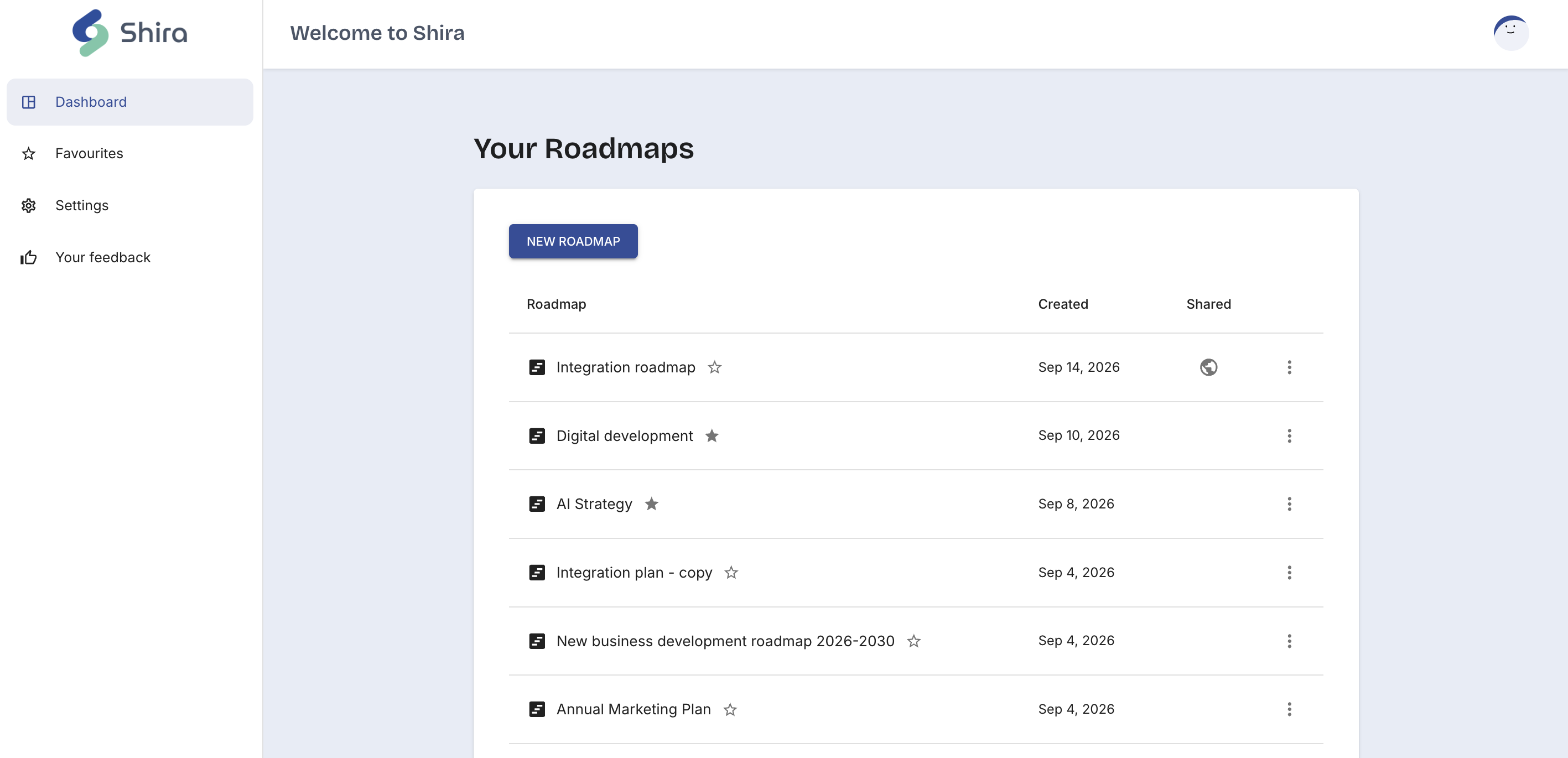
Three areas, always in the same place: the navigation sidebar down the left, the top bar across the top, and the roadmap list filling the rest.
The sidebar
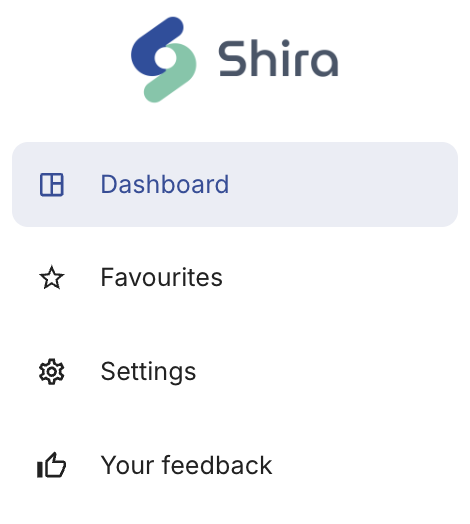
Four destinations, and the one you are on is highlighted in blue. The Shira logo at the top is decoration, not a button.
 1234
1234 - 1 Dashboard — every roadmap you own, newest first
- 2 Favourites — the same list, filtered to the ones you starred
- 3 Settings — account, billing, legal and build info
- 4 Your feedback — tell us what to build next
The top bar
The bar names the screen you are on and carries your trial status and your account menu.
 123
123 - 1 Screen title — Welcome to Shira on the dashboard and on Favourites
- 2 Trial countdown — only while a trial is running
- 3 Account menu — your avatar; click for My Account and Log out
The trial countdown
A ring that empties as your 14-day trial runs down, with the days left in the middle. Hover it and the tooltip reads Trial period. Once the trial is over the number turns red and the ring is empty. If you are on a paid subscription with no trial attached, the ring is not shown at all.

The account menu
Your avatar is generated from your name, so it is the same picture every time you sign in. There is nothing to upload and nothing to configure. Click it to open the menu.
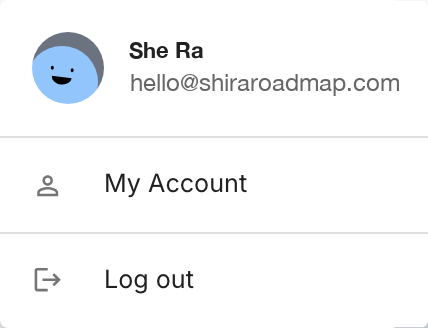
- The name and email at the top are a read-only reminder of the account you are in — they are not a link.
- My Account opens your profile page.
- Log out ends the session.
Your roadmaps
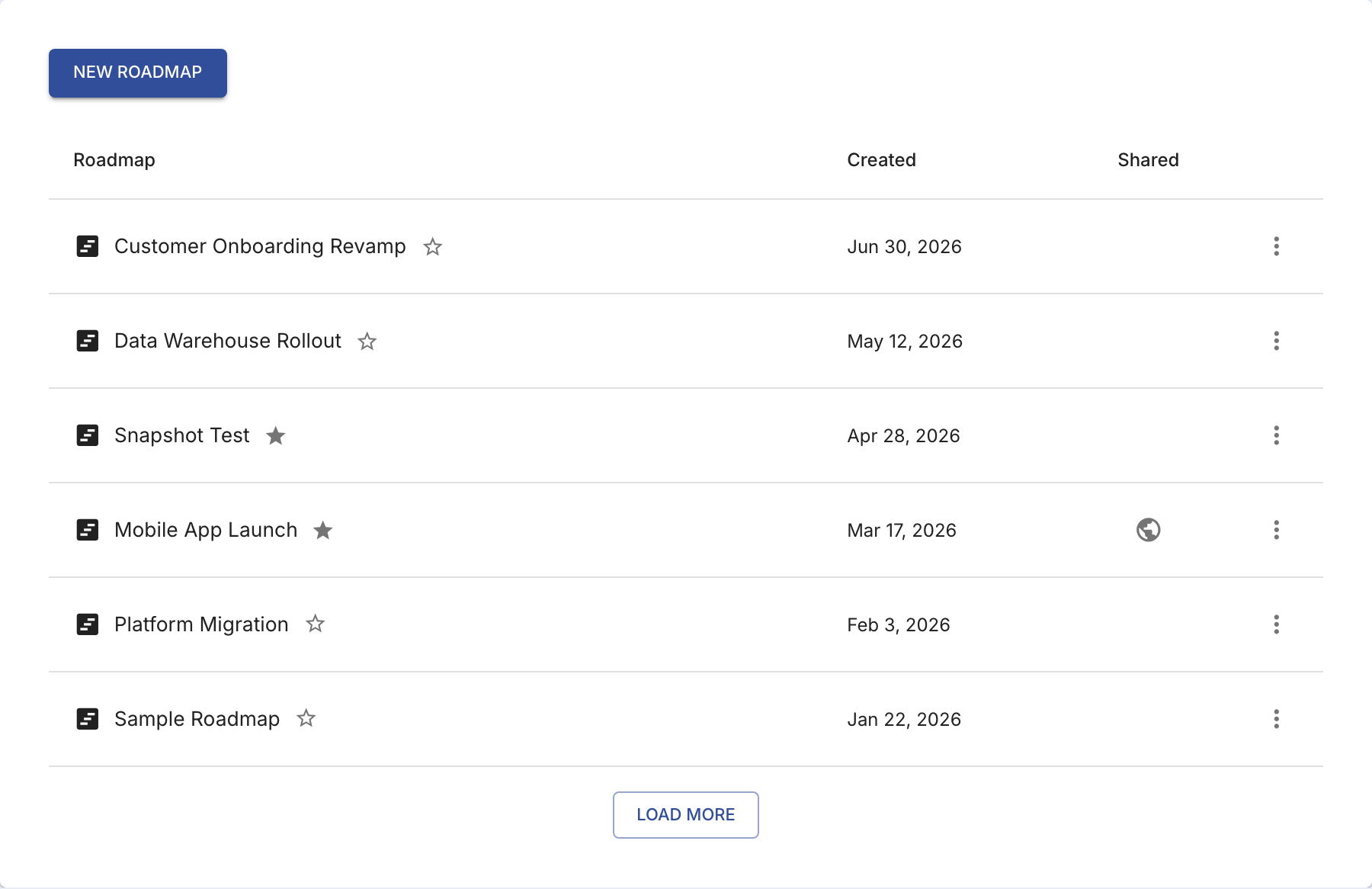
The main card on the dashboard. One row per roadmap, newest first by creation date, with a button above it to make another one.
What is in a row
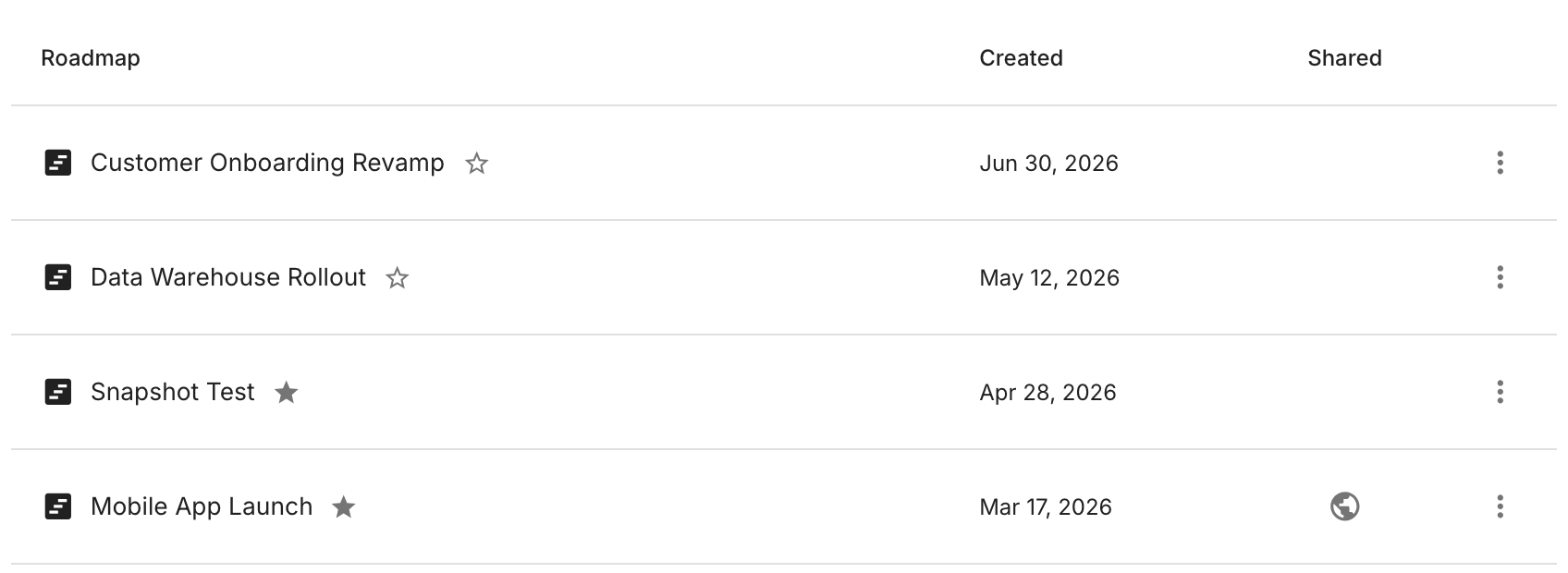 12345
12345 - 1 Title — click it to open the roadmap in the editor
- 2 Star — adds or removes it from Favourites
- 3 Created — the date the roadmap was first made
- 4 Shared — a globe, on the rows that have a public link
- 5 ⋮ menu — download the file, or delete the roadmap
Create a new roadmap
Click New Roadmap above the list. Shira suggests a title made from today's date and time, already selected so you can just type over it.
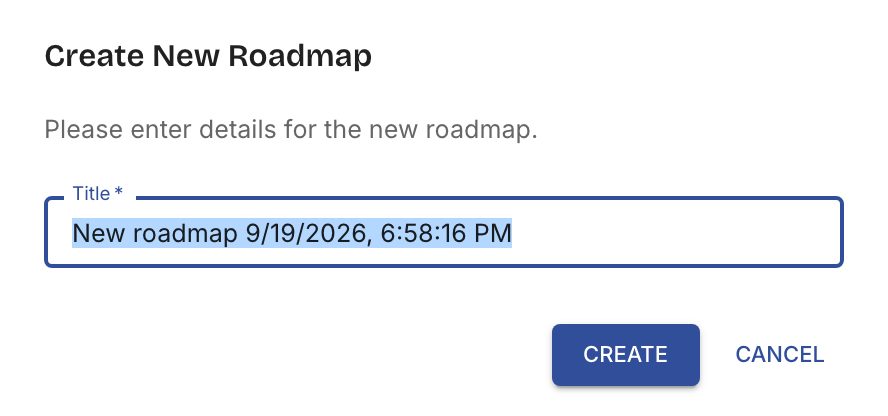
- The Title is required. An empty one is refused and the field is reselected for you.
- Create makes an empty roadmap in the cloud and takes you straight into the editor.
- Cancel closes the dialog and changes nothing.
- You can rename the roadmap later from the editor — the title here is not permanent.
Open a roadmap
Click its title. That opens the editor on that roadmap, loading the saved document from the cloud. Everything you do there is covered in the editor guide.
Star a roadmap
The star sits right after the title. Click it and the roadmap joins Favourites; click it again to take it out. A filled star means it is a favourite, an outlined one means it is not. Hovering tells you which way the click will go.
The star flips the moment you click, before the change has been stored. If storing it fails, the star flips back and Shira tells you so — nothing is left in a state that does not match what was saved.
The Shared column
A globe appears here only for roadmaps you have published a read-only link for. Click it and the shared view opens in a new tab, exactly as anyone with the link would see it — the canvas with no toolbar and no editing.
The dashboard shows you which roadmaps are shared and lets you open the link. Creating or revoking a share link is done from the Share button inside the editor, not from here.
The row menu
Click the ⋮ at the end of any row.
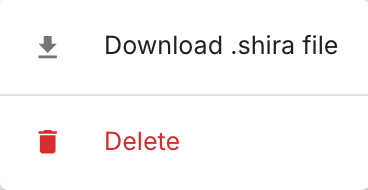
Download .shira file
Fetches the roadmap and saves it to your machine as a .shira file — the
same single-JSON format the editor imports, so a downloaded file can be opened again
in Shira or on the demo without an
account. The file is named after the roadmap title, with any character an operating
system refuses (\ / : * ? " < > |) replaced by a dash. A roadmap
with no title becomes roadmap.shira.
Delete
Asks you to confirm first — Delete "…"? This cannot be undone. — and then removes the roadmap and its content for good. The row disappears from the list straight away. There is no bin to recover it from, so download the file first if you might want it back.
Long lists
The list loads in pages of roughly twenty. When there is more to fetch, a Load more button sits under the table; each click appends the next page underneath what is already on screen. Rows never jump around as you load, and a roadmap is never listed twice.

If a page fails to load, the rows you already have stay put and a short message invites you to try again. Nothing you were looking at is thrown away.
When there is nothing to show
A brand-new account gets No roadmaps yet. and a nudge to create the first one. The Favourites view has its own version of the same message.
Favourites
The second sidebar item shows the same table, filtered to the roadmaps you starred. It is a view, not a folder — a roadmap is in exactly one place, and the star just decides whether it also turns up here.
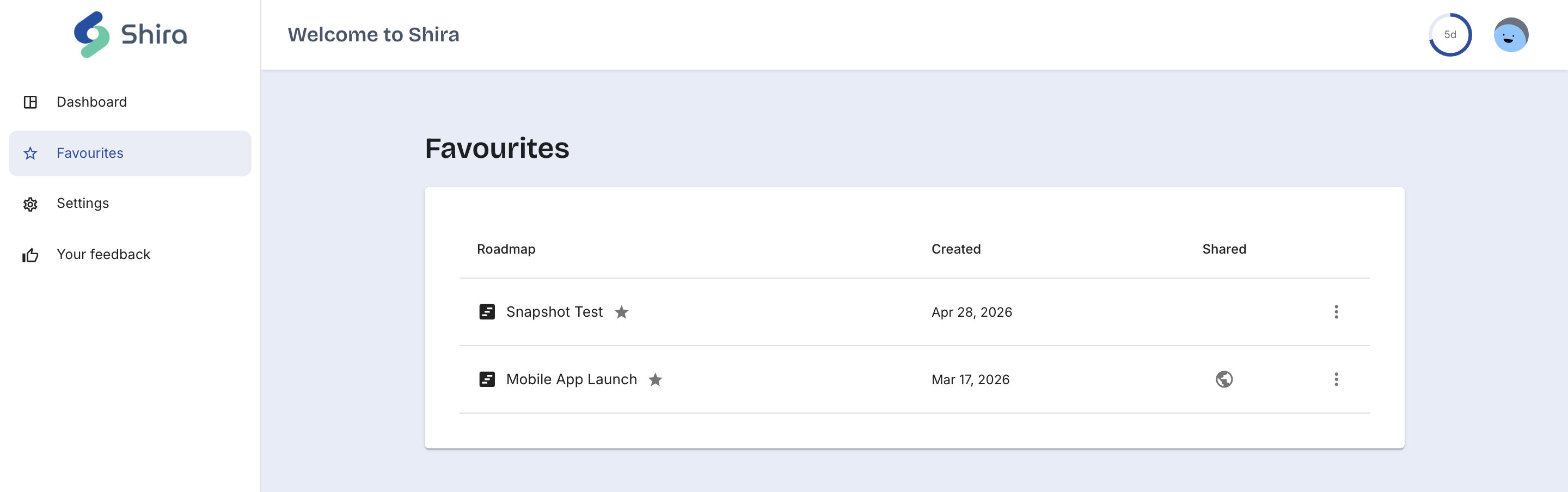
Two differences from the main Dashboard view:
- There is no New Roadmap button — a roadmap created here would not be starred, so it would vanish from the view the moment it appeared.
- There is no Load more — the whole set of favourites arrives at once.
Unstar something while you are in this view and the row is removed once the change has actually been saved.
Settings
Four cards, each one a signpost rather than a screen full of switches.
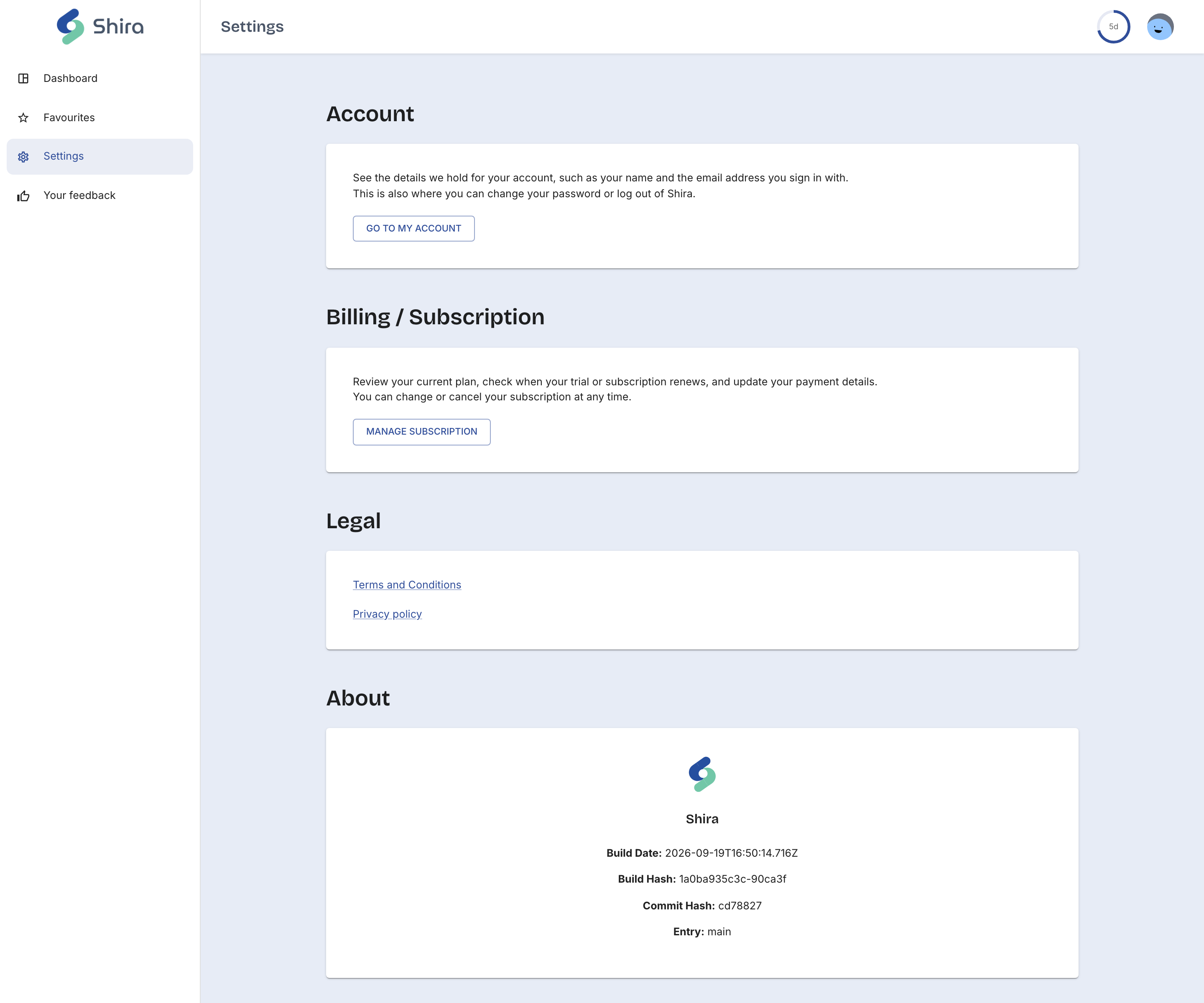
| Card | What it is for |
|---|---|
| Account | Your name and sign-in email, changing your password, logging out. Go to my account opens the profile page. |
| Billing / Subscription | Your plan, when the trial or subscription renews, and your payment details. Manage subscription opens the billing page. |
| Legal | Links out to the Terms and Conditions and the Privacy policy. |
| About | The build date, build hash and commit hash of the app you are running — handy to quote when reporting a problem. |
My Account
Reachable two ways: Go to my account in Settings, or My Account in the avatar menu in the top bar. A Back to Settings link sits above the heading, so you always land somewhere sensible however you arrived.
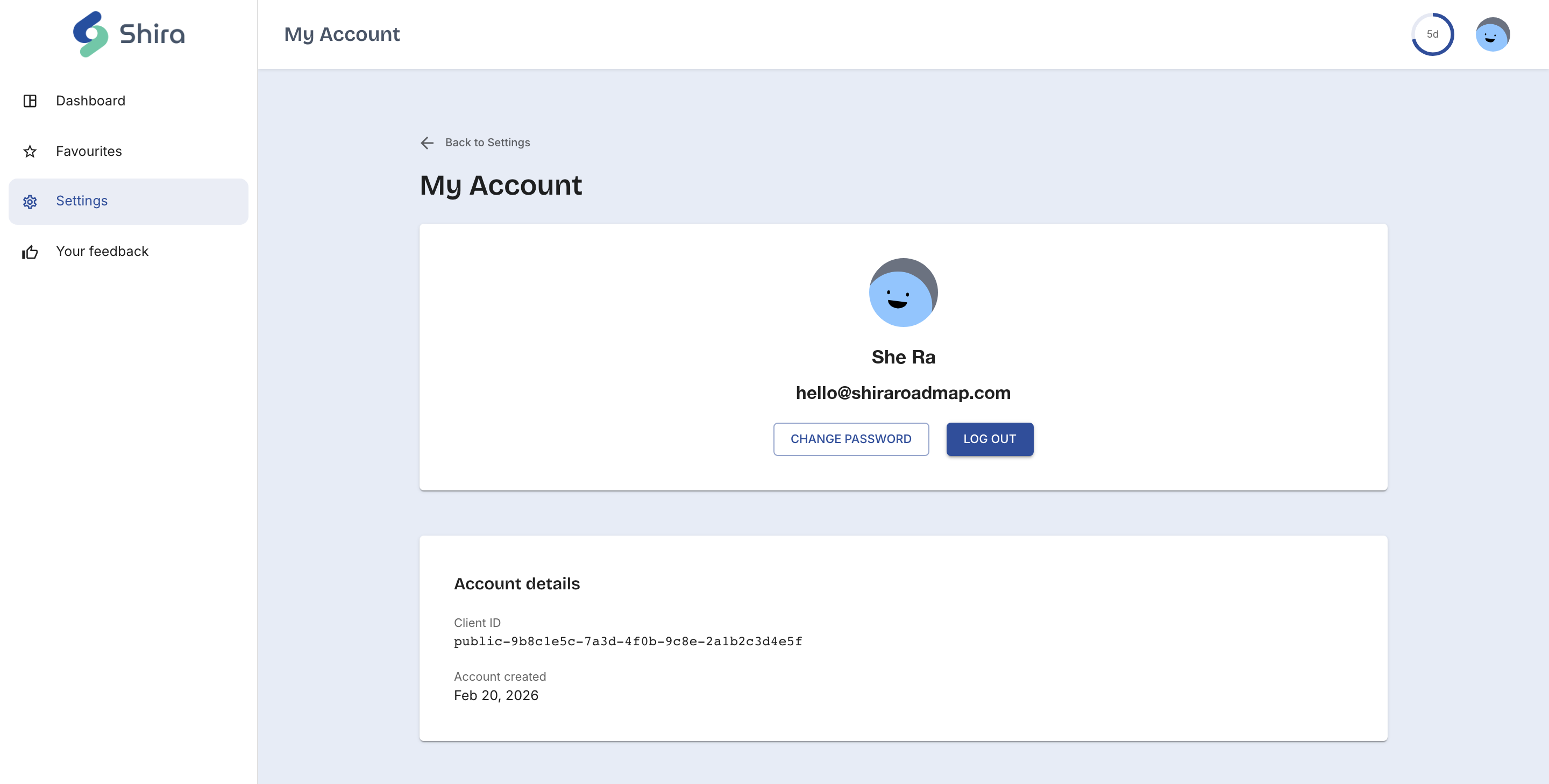
- Change password opens a dialog to set a new one.
- Log out ends the session, same as the avatar menu.
- Client ID is your account's public identifier. Quote it when you contact support.
- Account created is the date you signed up.
Billing
What the page shows depends on where you are: on a trial, on an active paid subscription, or on no subscription at all.
| Your state | What Billing offers |
|---|---|
| No subscription | The way to start one — plan details and a checkout link. |
| Trial running | When the trial ends and how many days are left, alongside the subscription that takes over from it. |
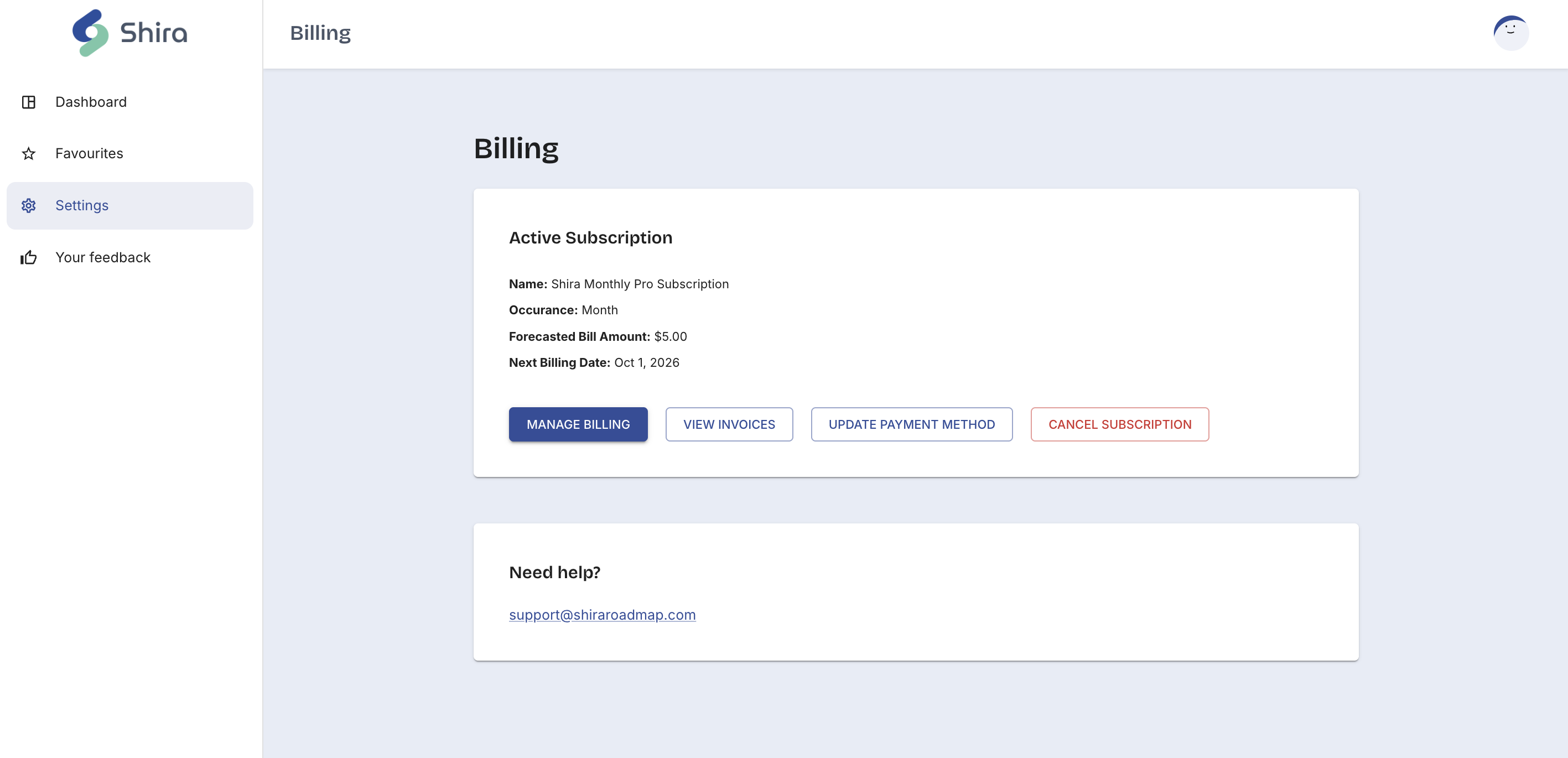
| Active subscription |
Plan name, how often it bills, the forecast amount and the next
billing date, with four actions underneath:
|
A Need help? card at the bottom points at support@shiraroadmap.com for anything the page cannot settle.
Your feedback
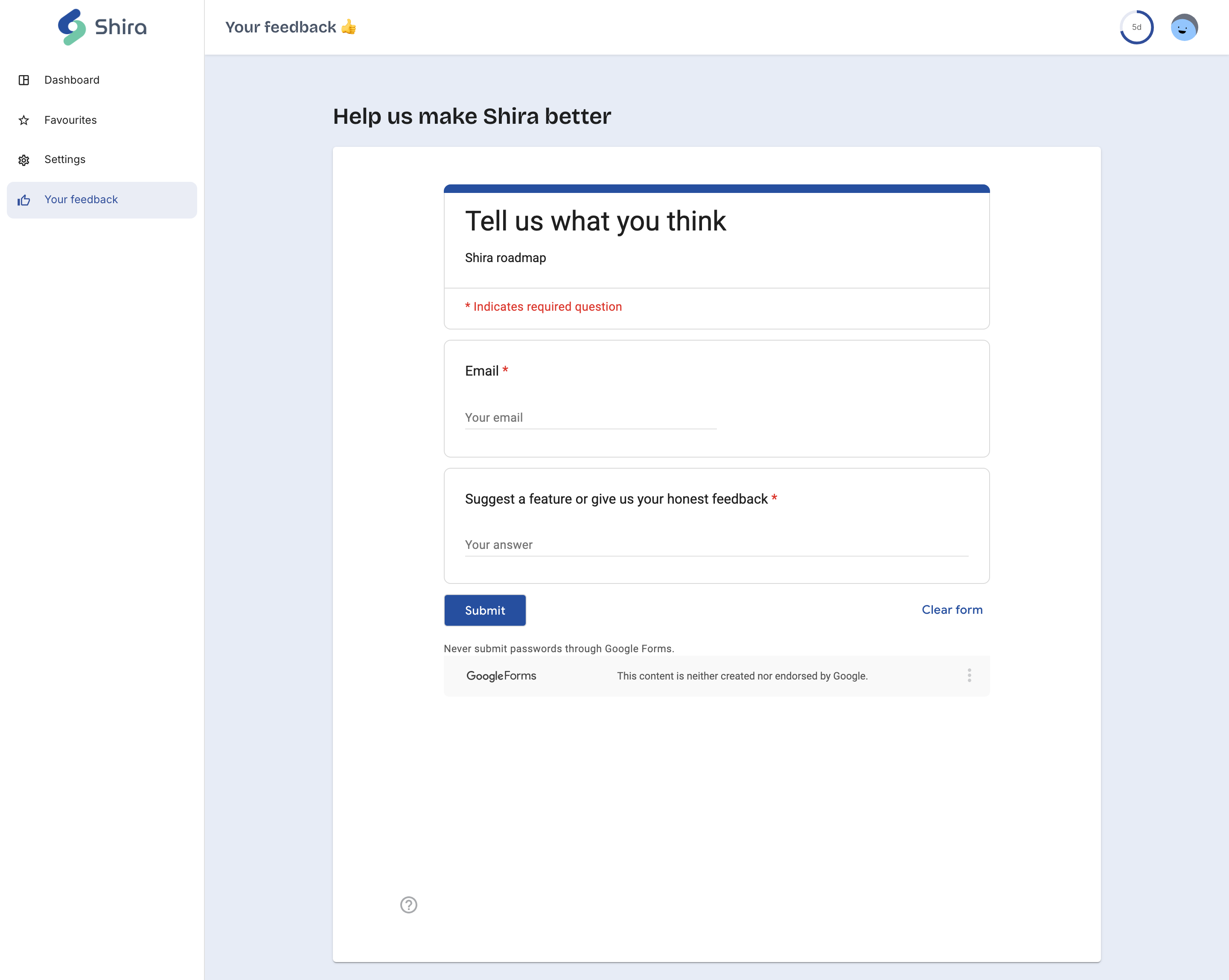
The last sidebar item opens a short form, embedded straight into the page. It is the quickest route for a bug, a missing feature or a rough edge — there is nothing to sign up for and no ticket to chase.
When an account is suspended
If a payment fails or a subscription lapses, the account is suspended and a red banner appears at the top of the dashboard with a Check billing button that takes you straight to the Billing page.

Shira does not lock you out of your own work. Editing is paused; reading and exporting are not.
| Dashboard control | While suspended |
|---|---|
| New Roadmap | Disabled |
| Star / unstar | Disabled |
| Shared globe | Shown, but not clickable |
| Download .shira file | Available — your data is always yours to take |
| Delete | Available |
| Opening a roadmap | Disabled; You can download .shira file and open in demo version |
| Settings, My Account, Billing, Feedback | Available |
Clearing the billing problem restores everything immediately.
Every dashboard action, in one table
| You want to… | Do this |
|---|---|
| Start a new roadmap | New Roadmap, type a title, Create |
| Open an existing one | Click its title in the list |
| Keep one close to hand | Click its star, then use Favourites in the sidebar |
| See a shared roadmap the way others see it | Click the globe in the Shared column |
| Get a roadmap out as a file | ⋮ → Download .shira file |
| Remove a roadmap permanently | ⋮ → Delete, then confirm |
| See more than the first page | Load more under the table |
| Check how long the trial has left | The ring in the top bar |
| Change your password | Avatar → My Account → Change password |
| Find your Client ID | Avatar → My Account → Account details |
| Change or cancel the subscription | Settings → Manage subscription |
| Check which build you are running | Settings → About |
| Report a bug or ask for a feature | Your feedback in the sidebar |
| Sign out | Avatar → Log out |
With a roadmap open you are in the editor — activities, milestones, categories, timescale, sharing and export. That is all in How it works — Shira Editor. If you would rather try before signing in, the demo runs the whole editor in your browser with no account, and the .shira file format reference explains the files the dashboard downloads.