
Short answer: scenario planning means deliberately building more than one version of a plan — a base case, a conservative case, an aggressive case — so a decision-maker sees a range of what might happen instead of one guess dressed up as certainty. The hard part was never writing the second version. It’s comparing it against the first one without losing track of what changed, what got cut, and what’s brand new.
What Scenario Planning Actually Is
The practice has roots in military and strategic planning, but it’s best known in business through Royal Dutch Shell’s use of it in the early 1970s — building out multiple plausible futures for oil markets rather than betting on a single forecast. When the 1973 oil crisis hit, Shell was reportedly better prepared than competitors who had planned around one predicted future instead of several possible ones.
The core idea hasn’t changed since: a single forecast is a guess wearing a confident outfit. A small set of deliberately different scenarios is an honest acknowledgment that the future isn’t fully knowable, paired with a real plan for more than one version of it.
Why Teams Do This for Roadmaps Specifically
Annual planning is where this shows up hardest. Leadership rarely wants just one version of next year — they want to see the base case next to what happens if growth is slower, or what an aggressive push would actually require. That means building, and keeping track of, several versions of the same roadmap at once, each representing a different set of assumptions.
The Manual Way, and Why It Breaks
Without a real mechanism for this, scenario planning usually turns into a collection of separate files — a base case, a copy for the conservative version, another copy for the aggressive one — each edited independently from that point on. Comparing them means opening two files side by side and spotting differences by eye, which works for a handful of changes and stops working almost immediately after that.
Nobody can say with confidence, three weeks later, whether the difference between two versions is one activity or eleven, and asking generally forces someone to reconstruct the answer manually instead of just seeing it.
What “Comparing Two Plans” Actually Requires
Done properly, comparing two versions of a plan needs three things, regardless of what tool is doing it:
- A frozen reference point. A named, unchangeable snapshot of the plan at a specific moment — not a file you might accidentally keep editing.
- A real diff. A way to see exactly what was added, what was changed, and what was removed between that reference point and the current version — not a side-by-side guess.
- A way to isolate what matters. The ability to look at just the additions, or just the removals, without the rest of the plan cluttering the view.
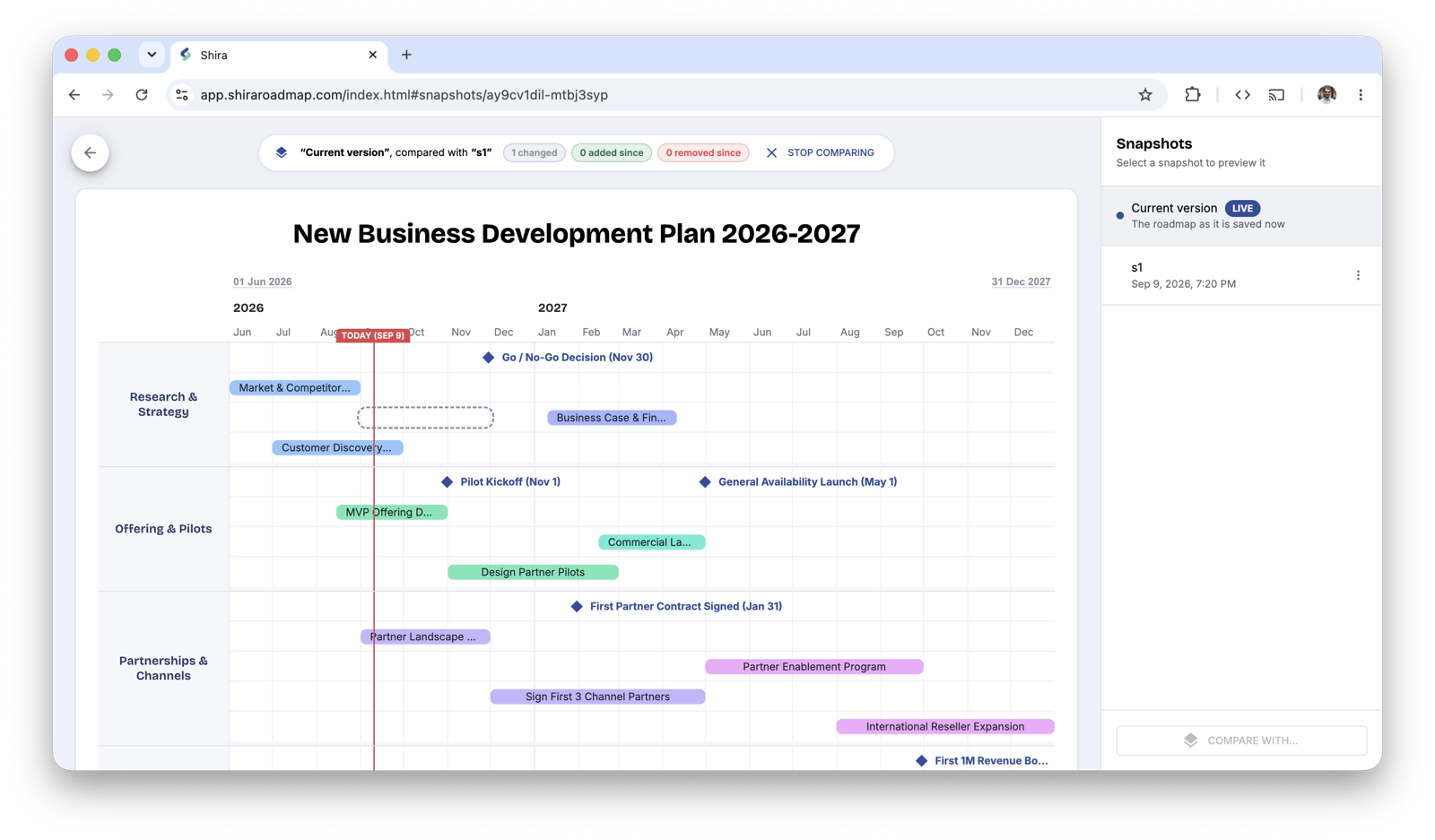
This is precisely the gap a spreadsheet or a slide deck can’t close on its own — not because the idea of scenario planning is hard, but because nothing about a static file tracks its own history. A tool built around named snapshots and a genuine comparison view (Shira’s own version of this lets you keep up to ten snapshots per roadmap, compare any one against the current plan, and see exactly what changed, was added, or was removed, with the option to isolate just one of those categories) turns scenario planning from a manual reconciliation exercise into something that takes a few clicks.
How to Actually Do It, Step by Step
- Build your base case first — the plan you’d present if nothing else were in question.
- Save it as a named, frozen reference point before changing anything.
- Adjust the plan into your next scenario — shift dates, add or cut activities, whatever the second case actually requires.
- Compare the new version against the saved reference point, and let the tool show the differences instead of hunting for them by eye.
- Repeat for a third scenario if you need one — but each additional version adds real cognitive load, so most plans don’t benefit from going far past three.
FAQ
How many scenarios should I actually build?
Three is the common sweet spot — a base case, a conservative case, and an aggressive case. Beyond that, more scenarios usually signal indecision rather than rigor, and make the comparison itself harder to reason about.
What’s the difference between scenario planning and contingency planning?
Scenario planning maps out multiple plausible futures to inform a strategic decision before it’s made. Contingency planning is a specific backup plan for a defined risk, used if and when that risk actually occurs. They’re often confused, but scenario planning is about breadth of possibility; contingency planning is about a single, named fallback.
Can I do scenario planning in PowerPoint or Excel?
Technically, yes — practically, it gets painful fast. There’s no built-in way to diff two versions, so comparison means opening files side by side and spotting differences by eye, which breaks down well before a real annual-planning scenario set gets built out.
Do I need a dedicated tool to compare two versions of a plan?
Not strictly, but the manual alternative — multiple files, eyeballed comparisons — doesn’t scale past a very small number of changes before it becomes unreliable. A tool with real snapshot-and-compare functionality turns a reconciliation task into something closer to a single click. Shira’s snapshots and comparison view are covered in more detail in the release notes, and if you’re still deciding which format your plan needs in the first place, roadmap vs. Gantt chart vs. project plan covers that distinction.